

Step by step guide to using the Booking System
On the booking site opening screen (below), locate the "Book Now" button in the centre of the top banner image.
STEP ONE
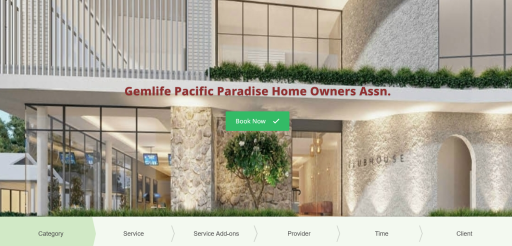
After clicking "Book Now", all 4 category groups available for booking will appear as below.
Activities (BBQ's, Crafts etc) - Rooms - Venues - Sporting Activities

STEP TWO
Select your "Booking Group" category and click "Select" to show all items in that group.
The example shown below is "Sports".
(Activities, Rooms & Venues) show on their respective pages when clicked.

STEP THREE
Select your booking item and click "Select." (Example shown is "Pickleball")
"Extra Time" will then appear for your selection if required.


Pick your time slot. (If a particular timeslot is not available, it means it has been booked by another party)
This will take you to the sign-in form. Existing Clients sign in with your credentials.
STEP FOUR

After signing in on the "Existing Clients" form, you will then be taken to the "Confirm Booking" button.
When a booking is done, you will be able to see your booking details and status "Confirmed".
Here you can also click on "Book More" or "Show all Bookings" (if you have made more than one).
An email will then be sent to you with all the relevant details concerning what you have just booked.
You will also receive reminder emails from the system nearer your booking time.
Please note: It can take a short time to load the booking system.
Registered users. Log in using your previously registered email and password as normal.
Just log out when you finish your booking.
Any problems, contact the Webmaster.
NOTE: If it is your first time, you will need to register by sending your details, Name, Villa number, Phone number, and Email address to the HOC, requesting access. A site administrator will check and verify your membership details, and you will receive an email advising you of your User Name and requesting you set a "Password".
40 Menzies Drive
Pacific Paradise
Queensland 4564
